
Update your notification settings, so that you receive the email notifications you’re interested in.
Applies to: All plans (available actions vary by plan)
Learn More: Ascender® Plans & Permissions
Instructions
Understand Types of Email Notifications
In order to update your notification settings, first understand the types of email notifications Ascender provides and the options for each.
|
Notification Type |
Description |
Subscription Options |
|---|---|---|
|
Account Notifications All users |
These emails will help you manage your Ascender account. For example:
|
These cannot be unsubscribed from, as they’re necessary for managing your account. |
|
Nurturing Emails Plus users |
These emails will keep you informed of the latest live sessions with our facilitators, as well as featured courses and other content on the Ascender platform. For example:
|
Note: If you don’t see this option under Email Notifications, that means your company has opted out of these emails for all users and you will not receive them. |
|
Marketing Emails Connect, Pro, Teams users |
These emails will keep you informed of the latest live sessions with our facilitators, as well as featured courses and other content on the Ascender platform. For example:
|
Note: You will not see this option under Email Notifications, use the Manage Preferences link in one of the emails you’ve received to manage your notification settings. |
Update your Nurturing Email Notification Settings
Applies to: Plus plans
Learn More: Ascender® Plans & Permissions
via 
-
Locate the Nurturing Email notification.
-
Select the toggle next to it to toggle it on (to subscribe) or off (to unsubscribe).
A success message banner will pop up confirming that the change has been made. The change will go into effect within 24 hours.


Update your Nurturing or Marketing Email Notification Settings from the Email Footer
Applies to: All plans
Learn More: Ascender® Plans & Permissions
via one of the Nurturing or Marketing emails you’ve received:
-
Select Manage Preferences located in the email footer.
-
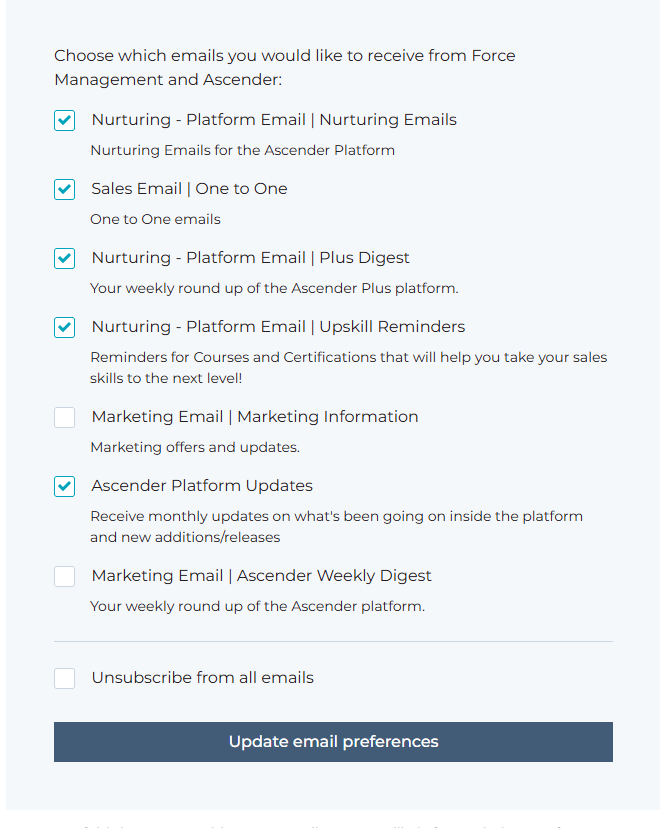
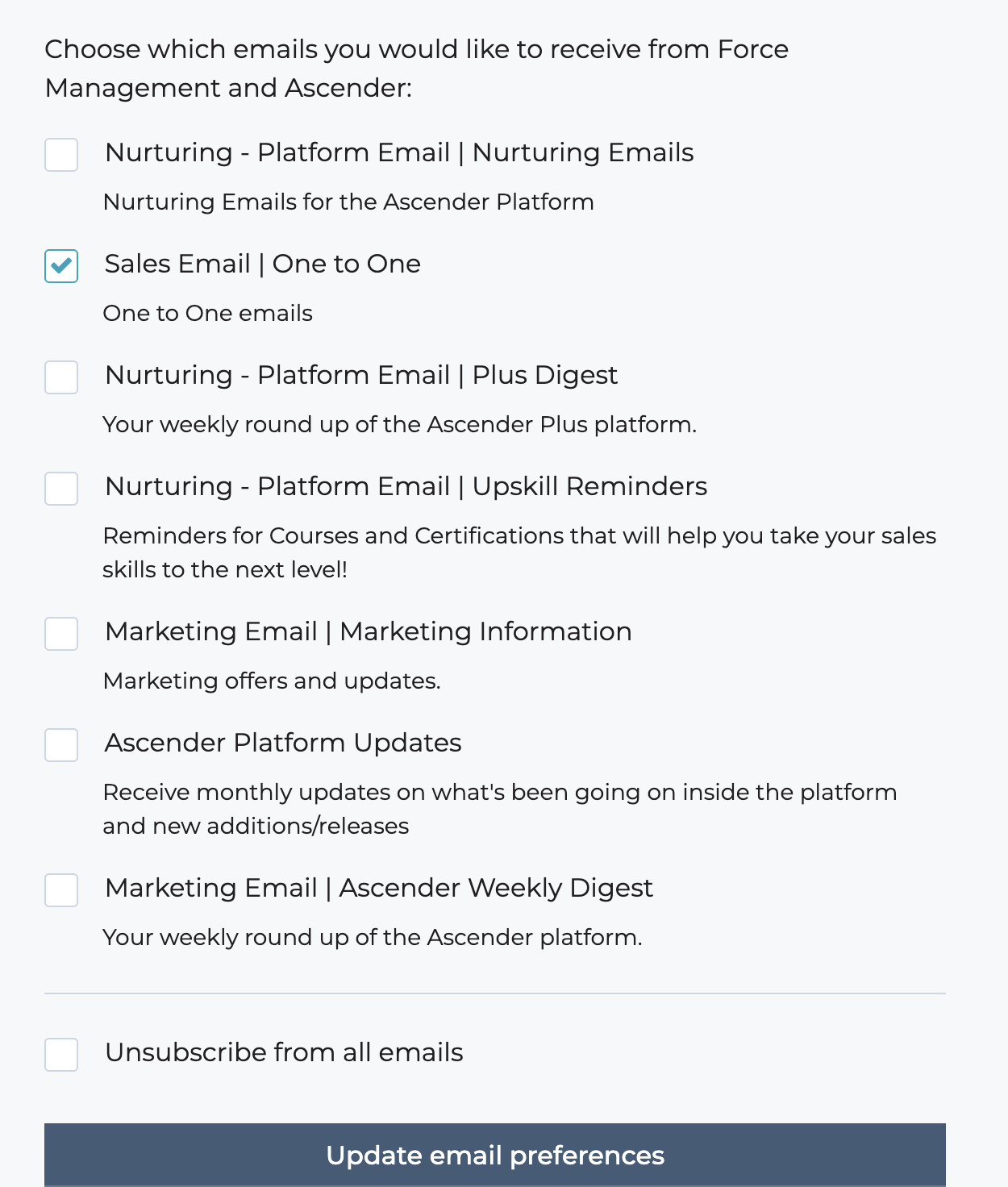
This will take you to the Update Your Communication Preferences page.
-
Review the emails and change your selections to meet your preferences. Checking the box means you will receive it, and unchecking it means you will no longer receive the email.
-
Select Update email preferences.
The change will go into effect within 24 hours.
Nurturing Emails (Plus)
Marketing Emails (Connect, Pro, Teams)
Additional Information
-
Ascender Plus Company Admins — To request company-wide opt out of all nurturing emails, contact support by clicking the Get Support button on the bottom right of this page and submitting a ticket.
Related Articles