
The Ascender platform provides short content, online courses, and live learning opportunities that drive results. For Enterprise companies, Ascender provides additional access to methodology-specific content, tools, and resources to support your entire engagement with Force Management.
Applies To: All plans
Learn More: Ascender® Plans & Permissions
General Access Tips
-
Accessing the Platform: Ascender has been developed to support both online and mobile engagements. This means you can access Ascender on any computer or mobile device via your browser. Currently, both Google Chrome and Safari are fully supported.
-
Connectivity: When attempting to connect to Ascender, strong connectivity is key. Since many of our courses and engagement activities leverage video we recommend accessing the platform in an area where you can maintain a bandwidth of at least 8-10 MBPS (Download Speed) to eliminate video buffering. (You can check your bandwidth here: https://www.speedtest.net/)
-
Enabling Communication: In order to ensure that all platform emails and communications are delivered effectively, we recommend adding the following email addresses to your safe senders list to ensure that you receive password & assignment email notifications:
-
@ascender.co
-
@forcemanagement.com
-
Best Practices when Taking Courses
Optimize Your Browser and Zoom
-
Use supported browsers such as Safari, Chrome, or Edge. Avoid using Firefox or private browsers like Brave.
-
Limit to a single browser tab; having Ascender open in multiple tabs at once can cause session conflicts.
-
Maximize your browser window to full screen before starting a lesson.
-
Maintain a zoom level where all content and navigation options are visible. Adjust as needed to view course contents without issue.
-
On smaller laptops, decrease the zoom level below 100% to view all content.
-
On larger monitors, maintaining 100% zoom generally allows the full course content to display properly. Test your screen settings for the best fit.
-
High zoom (e.g., 200%) might hide navigation buttons, such as Next Module.
-
Complete the Lesson Content Fully
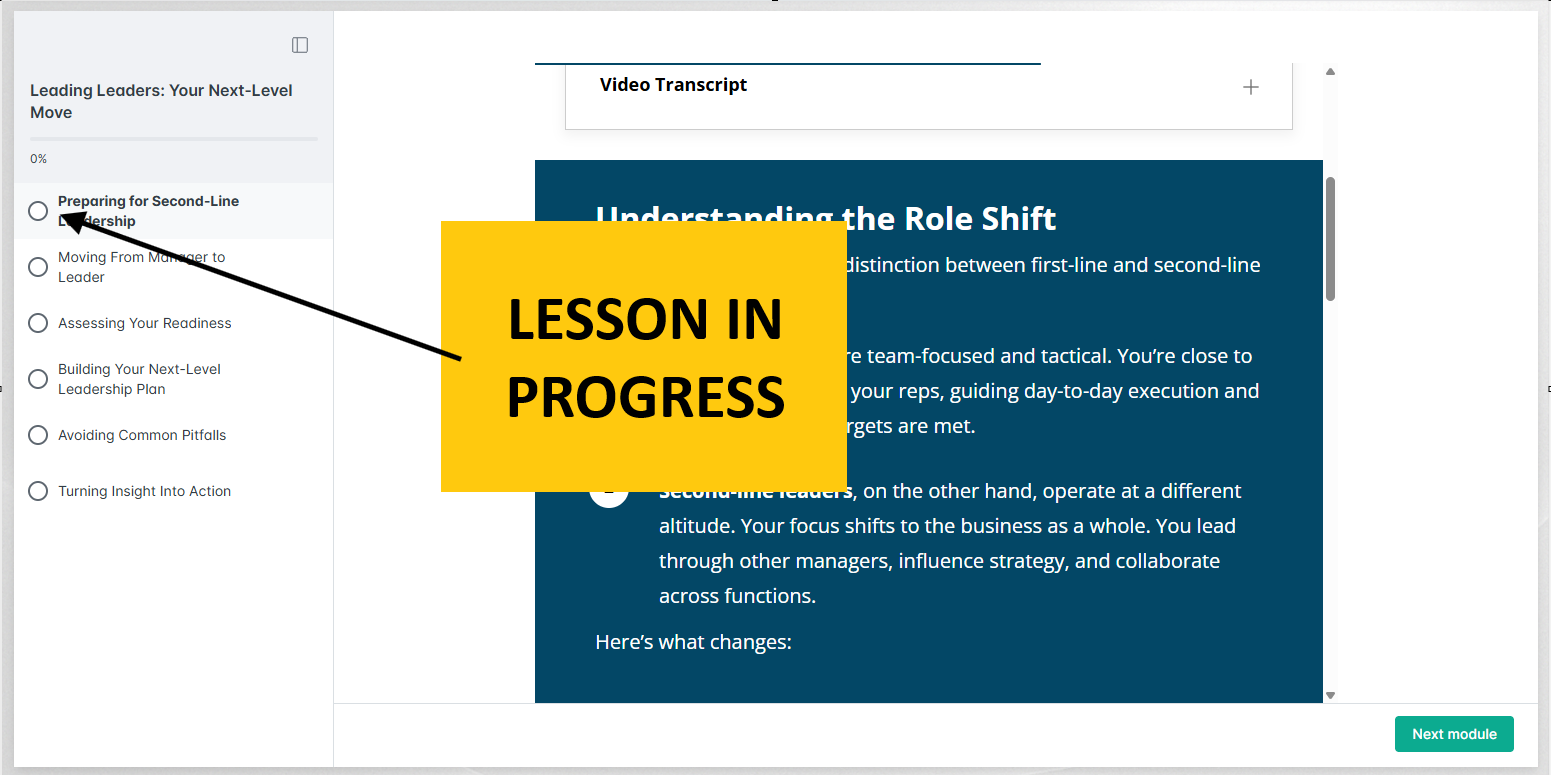
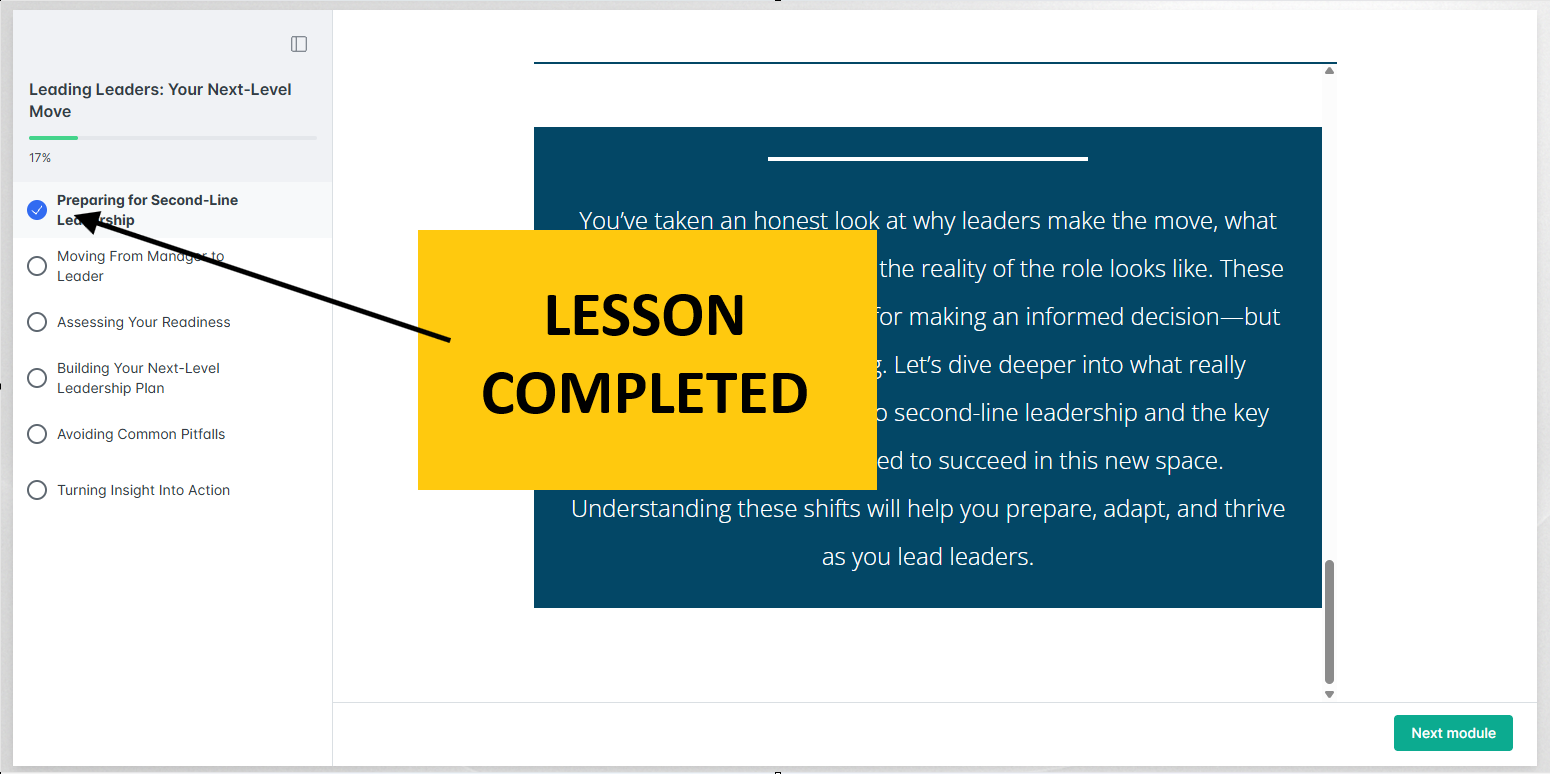
Upon reaching the end of the lesson, wait for the checkmark to appear in the left-hand navigation (confirming the completion has come through) before clicking Next Module.
-
Always watch course videos completely to ensure your progress is marked.
-
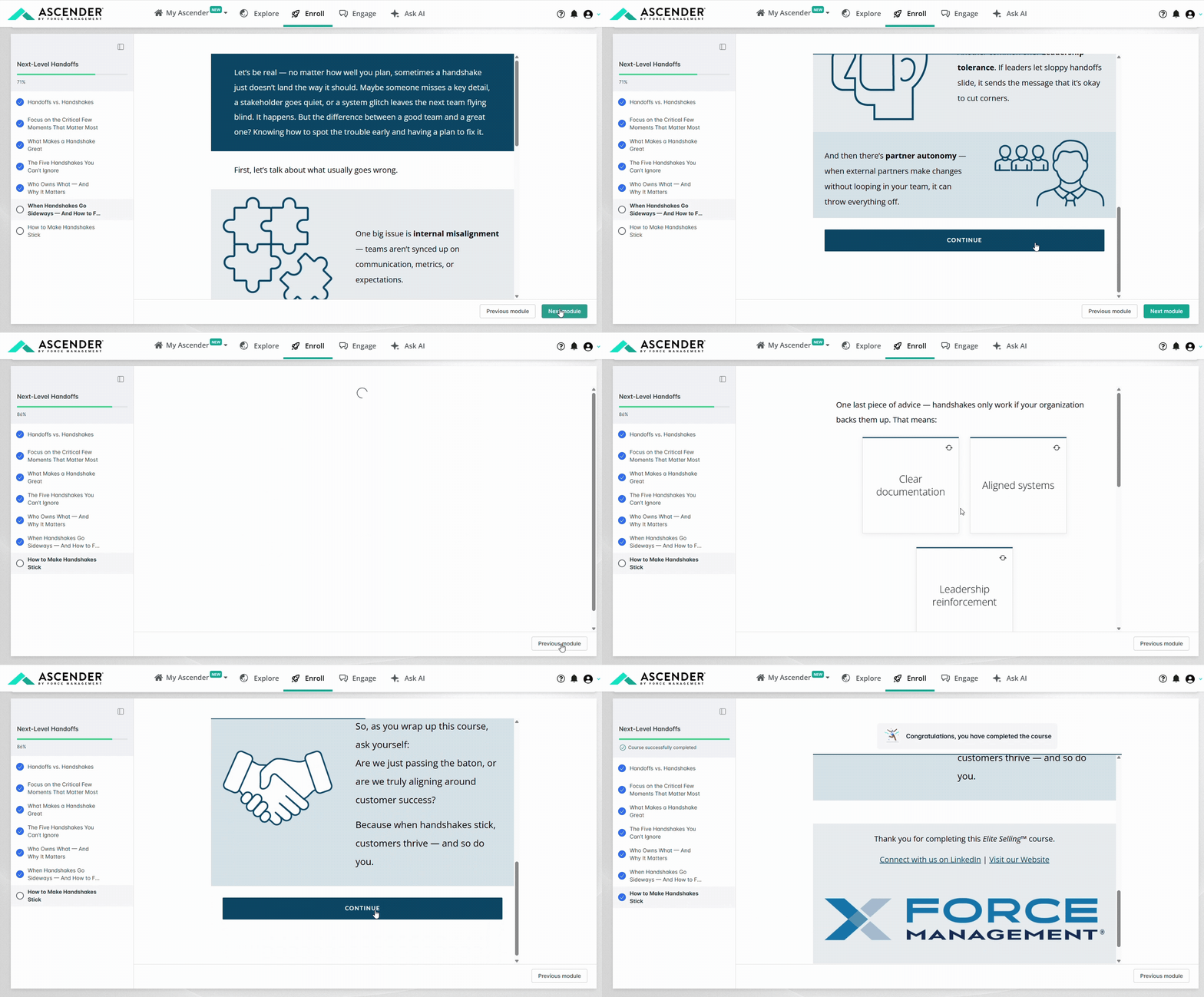
Pay attention to multiple scrollbars. Ensure you scroll all the way to the end of the lesson. This may include clicking Continue buttons along the way.
-
Tip: Most of the lessons have a slight progress bar at the top of the lesson right beneath the window header. That will turn completely blue once you've met the completion requirements for that lesson.
-
-
Once you've reached the end of the lesson, wait a few seconds and wait for the completion checkmark to appear before going to the next module.
-
Note: Waiting for that checkmark confirmation is especially important if you have a slower connection or have had course completion issues in the past.
-
Addressing Glitches
-
Rarely, a glitch may leave a lesson in an in-progress state even after completion (if you move to the next prior to that checkmark appearing). Unfortunately, revisiting the lesson won't resolve this.
-
If this occurs, promptly submit a support ticket for assistance.
By following these practices, you'll minimize technical disruptions and ensure that all your hard work is correctly recorded and credited. For a visual tutorial please watch the video below.
“Record Your Own” Lesson Tips (For Facilitator Certification Teach-Back Prep)
-
Device Capabilities: In order to fully participate in all of the Facilitator Certification Teach-Back Prep courses, you will need to make sure that you use a device that has both video and audio recording capabilities.
-
Using the Ascender In-App Recorder:
-
Keep your videos less than 15 minutes.
-
Your browser may prompt you for permissions to use your camera and microphone to record the media - if it does, choose Allow.
-
If the in-app recorder does not appear to be working and a prompt does not appear, check your browser's camera and microphone settings to make sure both are set to Allow. Refresh the screen after making the change.
-
Chrome Help: Use your camera & microphone
-
Firefox Help: How to manage your camera and microphone permissions with Firefox
-
Safari Help: Change Websites settings in Safari on Mac
-
Microsoft Edge: How to allow a website to use your camera or microphone while browsing in Microsoft Edge
-
-
Once you’ve stopped recording, select Upload to your upload your video. Once the video has successfully uploaded, make sure to select Submit Assignment to actually submit the video to the FM team for review.
-
-
Recording Elsewhere & Then Uploading to Ascender: Keep your videos less than 15 minutes. The video file size limit is 500MB. Accepted files types include .mp4,.mov,.wmv,.avi.
-
Once the video has successfully uploaded, make sure to select Submit Assignment to actually submit the video to the FM team for review.
-
Need additional assistance?
-
Connect and Pro users: Email techsupport@forcemanagement.com.
-
Plus users and managers (if your Ascender access is managed by your company):
-
Contact your company's admin for support related to profile information, password/login issues, questions about assigned content, or manager hierarchy change requests.
-
Contact Ascender for support related to platform or content issues by clicking the Get Support button on the bottom right of this page and submitting a ticket.
-
-
Plus admins:
-
Contact your FM service admin for questions about your engagement with Force Management.
-
Contact Ascender for support related to platform or content issues, admin support, or widespread issues by by clicking the Get Support button on the bottom right of this page and submitting a ticket.
-
Related Articles