
Change or reset your password as needed so that you can continue accessing the Ascender platform. This article applies for users that do not use Single Sign-On (SSO) to access Ascender. If you’re a member of a Plus company that does use SSO for Ascender, then you do not have an Ascender password. If you need to change your SSO password, follow your company’s guidance or reach out to your company’s IT for assistance since that is managed outside of Ascender.
Instructions
Change your Password
To use this method, you must know your current password and be logged in to Ascender.
via 
-
Select Change Password.
-
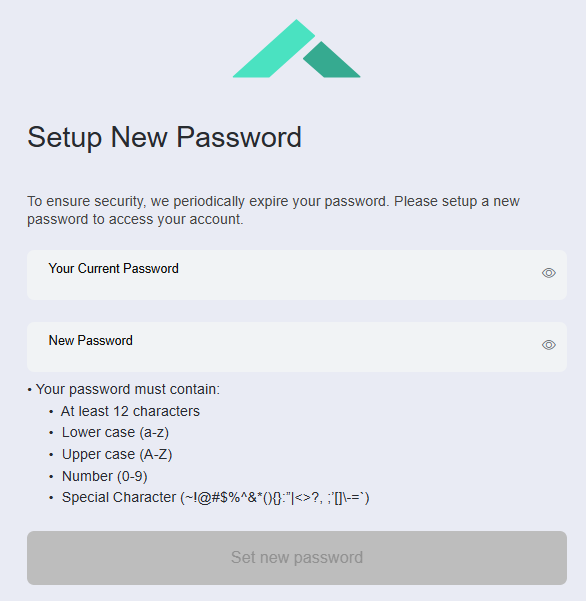
Enter in your Current Password and a New Password. Your password must contain:
-
At least 12 characters
-
Lower case (a-z)
-
Upper case (A-Z)
-
Number (0-9)
-
Special Character (~!@#$%^&*(){}:”|<>?, ;’[]\-=`)
-
-
Select Save New Password.
Request a Password Reset and then Change your Password
Use this method if you don’t know your current password and need to reset it.
-
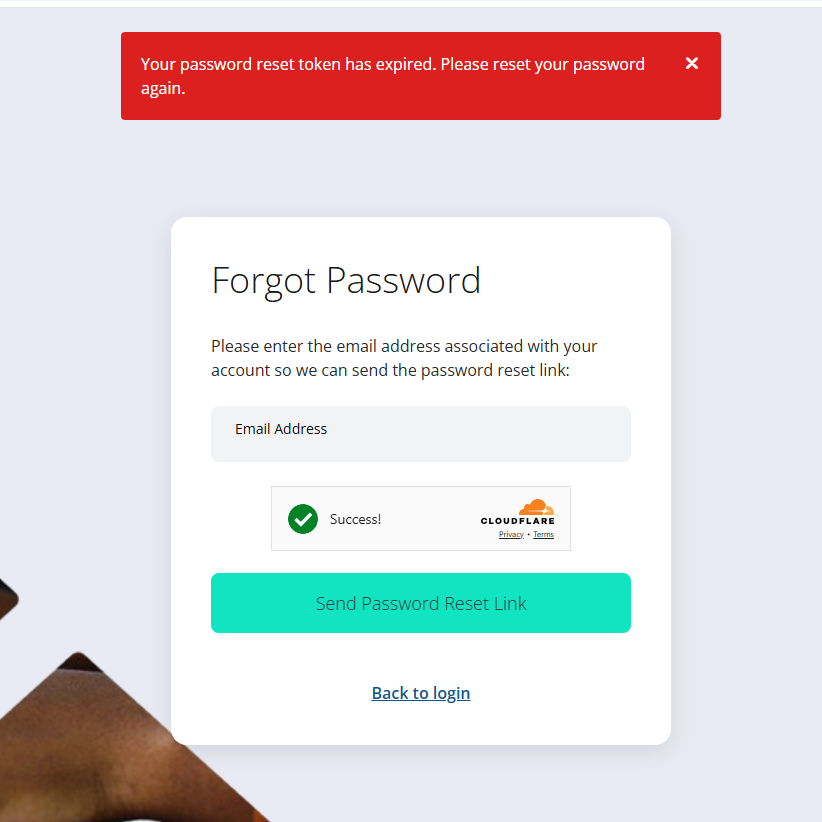
Go to the Ascender Forgot Password page.
-
Enter the Email Address for your account.
-
Select Send Password Reset Link.
-
Select the Complete Password Reset link in the Password Reset for Ascender email you receive.
-
Enter the New Password you want to use. Your password must contain:
-
At least 12 characters
-
Lower case (a-z)
-
Upper case (A-Z)
-
Number (0-9)
-
Special Character (~!@#$%^&*(){}:”|<>?, ;’[]\-=`)
-
-
Select Complete Password Reset.
-
Log in to Ascender with your same email and new password.
The link in the password reset email will expire after 24 hours. If that happens before you reset your password, you can follow the steps above again to request a new link.
Additional Information
-
Annual password changes — After one year of using the same password, you’ll be prompted to set a new password upon your next login. Once you set a new password, this will reset the time period for your next required password change to one year.
Related Articles