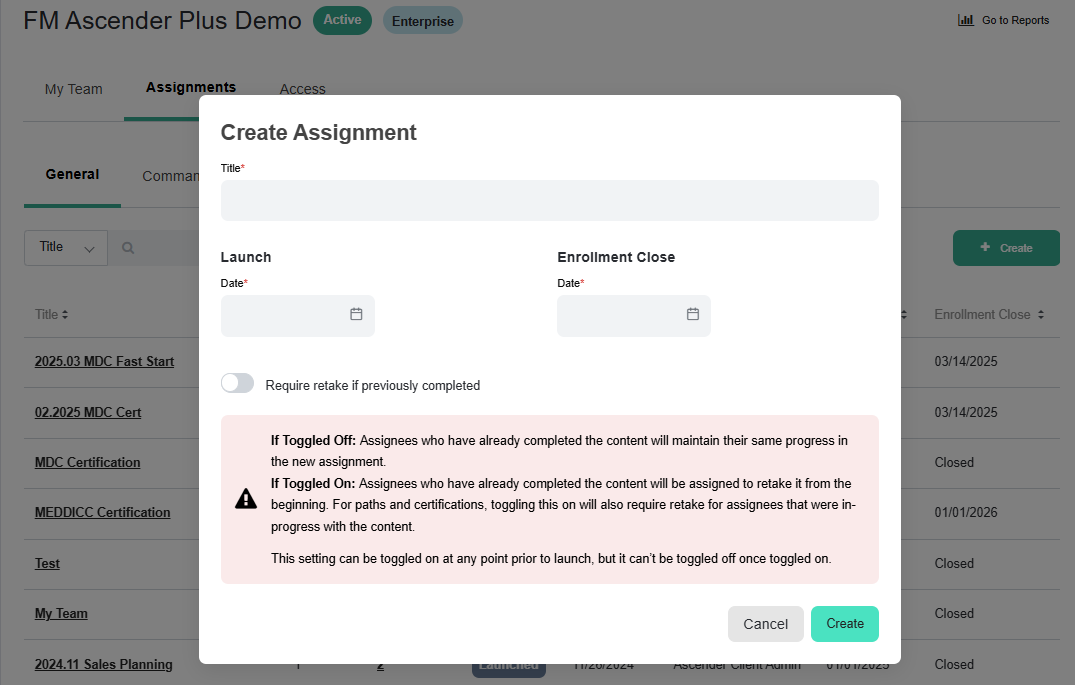
Create a new assignment, so that your team will get notified and know what they need to complete. To assign a Command Series Certification, refer to https://fmprojectmanagement.atlassian.net/wiki/spaces/ASCKB/pages/412188688/Assign+a+Command+Series+Certification+or+Unassign?atlOrigin=eyJpIjoiN2E0YjJhOTQ1ODFhNDc4N2I0MmMwOTYzNGY0YTFlNDciLCJwIjoiYyJ9 instead.
Applies to: Plus plans | Access Needed: Manager; Manage Assignments admin permissions
Instructions
We recommend adding content and due dates prior to adding assignees. This will ensure that assignees receive the new assignment notification with all of the relevant assignment information included.
Create an Assignment
via 
-
On the Assignment tab, select Create.
-
Under Assignment Details:
-
Fill in the Title. We recommend sticking with a consistent naming structure - it makes it easier to find the assignment you’re looking for in the Assignments list.
-
Select a Launch Date. This is the date when the content will appear in the assignees' Current Assignments list, and they will receive both an email and a bell notification informing them of the new assignment. We recommend setting this at least one day in the future.
-
Set an Enrollment Close Date. This is the date that will be the deadline for adding assignees to that assignment.
-
-
Determine whether to toggle on Require retake if previously completed:
-
If Toggled Off: Assignees who have already completed the content will maintain their same progress in the new assignment.
If Toggled On: Assignees who have already completed the content will be assigned to retake it from the beginning. For paths and certifications, toggling this on will also require retake for assignees that were in-progress with the content.
This setting can be toggled on at any point prior to launch, but it can’t be toggled off once toggled on.
-
-
Select Create.
You'll be taken to that assignment for further editing. Resources:https://fmprojectmanagement.atlassian.net/wiki/spaces/ASCKB/pages/412286980/Manage+General+Assignments?atlOrigin=eyJpIjoiMjA4ZGZlNGNhMDY5NDU5YzkwYTk2MjE0NzQ0YjAwYzEiLCJwIjoiYyJ9 | https://fmprojectmanagement.atlassian.net/wiki/spaces/ASCKB/pages/412254212/Manage+Assignees+for+General+Assignments?atlOrigin=eyJpIjoiOTA0MTI5MWEzYjJiNDhlMzkyZGIwYmU5YTVjOGFiN2MiLCJwIjoiYyJ9