Manage assignees, so that the desired participants will be included in the assignment.
Applies to: Plus plans | Access Needed: Manager; Manage Assignments admin permissions
Instructions
We recommend adding content and due dates prior to adding assignees. This will ensure that assignees receive the new assignment notification with all of the relevant assignment information included.
You will not be able to add or remove assignees once the Enrollment Close date has passed.
Manage Assignees - Add selections Manually
via 
-
Select the title of the assignment you want to manage assignees for.
-
If you’re a manager, you’ll only be able to select assignments you created.
-
If you have company-wide manage assignment permissions, you’ll be able to select any assignment, but your access within it may vary.
-
-
Select the Assignees tab.
-
Select Manage Assignees.
-
Find and the select the checkbox for each of the users that should be included in the assignment.
-
You can search by name to narrow down the list.
-
Unselecting a name that was previously selected will remove that user from the assignment.
-
Toggle from showing All (all content available for you to assign) to Selected Only (the items you currently have selected) to make sure the right content is listed before you save the updates.
-
-
Once you have all of the correct assignees selected, select Apply.
The assignment will be temporarily locked from editing while the updates process.
Manage Assignees - Add Selections via Upload
via
-
Select the title of the assignment you want to manage assignees for.
-
If you’re a manager, you’ll only be able to select assignments you created.
-
If you have company-wide manage assignment permissions, you’ll be able to select any assignment, but your access within it may vary.
-
-
Select the Assignees tab.
-
Select Manage Assignees.
-
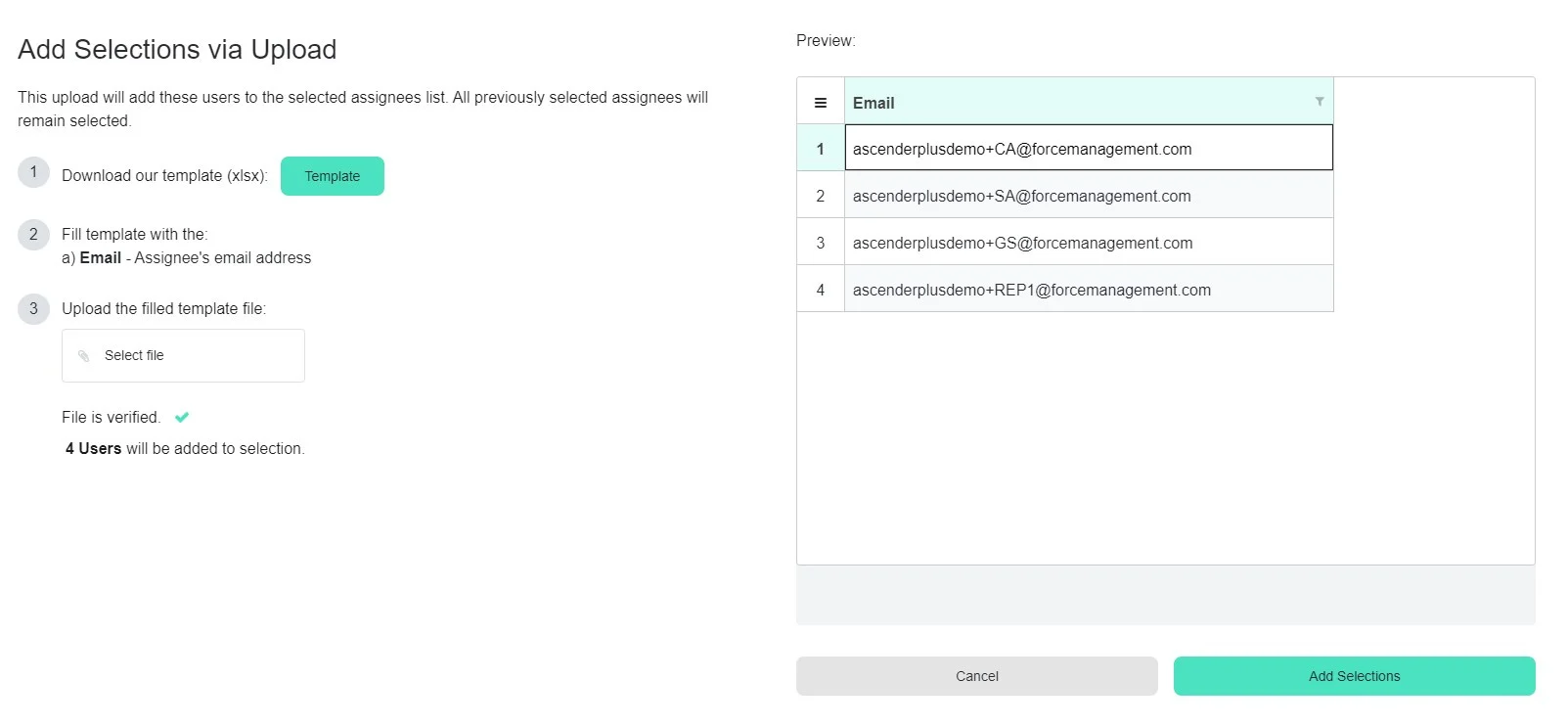
Select Add Selections via Upload.
-
Download template by selecting Template.
-
Add email addresses for each assignee you want to add to the assignment in the Excel column labeled Email and save as an xlsx.
-
Upload the file by selecting Select file.
-
If all email addresses are correct, select Add Selections.
-
If any are incorrect, update the spreadsheet and re-upload.
-
-
Once you have all of the correct assignees selected, select Apply.
The assignment will be temporarily locked from editing while the updates process.