
The MEDDPICC Qualifier allows Reps to capture deal details in alignment to the MEDDPICC methodology.
Available Fields:
Metrics
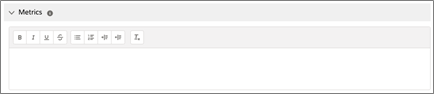
Use this field to capture the Metrics, which describe the quantifiable and tangible impacts your offerings have with existing customers. They are also leveraged as “proof” of the business benefits of your solutions.
This field is available as a “Rich Text Field” which allows users to enter and format relevant information.
Economic Buyer
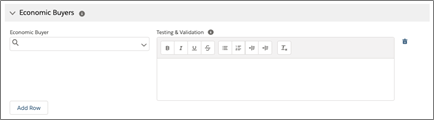
Use this field to identify the individual(s) within the Decision Process required for the final “yes.” Economic Buyers have: Direct access to money, Discretionary use of funds, P&L responsibilities, and Veto power. They can say “yes” when others say “no,” and vice versa.
When selecting your Economic Buyer(s), you will be limited to selecting existing “Contacts” already associated within the Account which this opportunity is associated with. You will have a “Create New Contact” button within this field to use if your Economic Buyer’s contact hasn’t been created yet.
Also included is the “Testing & Validation” field which should be used to describe the activities you’ve conducted to test and validate that this individual is the real Economic Buyer for this opportunity.
This field is available as a “Rich Text Field” which allows users to enter and format relevant information.
Decision Criteria
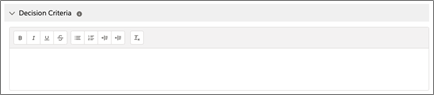
Use this field to identify the highest priority solution requirements that impact the buying decision. Decision Criteria are stated in the customer's language but should be influenced by your differentiation.
This field is available as a “Rich Text Field” which allows users to enter and format relevant information.
Decision Process
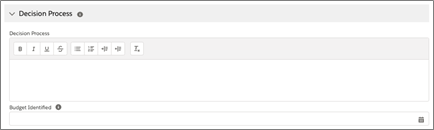
Use this field to identify the major/critical steps in the customer’s Decision Process. This is the process by which a customer will evaluate, select, approve, and purchase a solution.
This field is available as a “Rich Text Field” which allows users to enter and format relevant information.
Also included is a date field “Budget Identified” for identifying when you confirmed the budget (size & availability) with your Champion(s) and Economic Buyer(s). Select the date from the calendar pop-up.
Paper Procress
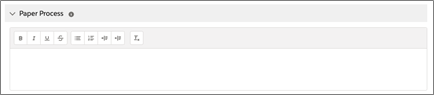
Use this field to identify the customer’s Paper Process. Include all additional steps required in the customer’s decision process that detail the process for releasing funds after making the decision to purchase.
This field is available as a “Rich Text Field” which allows users to enter and format relevant information.
Identified Pain - Identified Pain
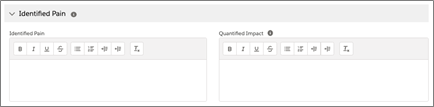
Use this field to capture the customer’s Identified Pain. “Pain” is described as any problem or need that negatively impacts the customer. Pain usually falls into two categories: Business or Technical. The pain should address “Urgency,” “Impact,” and “Desired Results.”
This field is available as a “Rich Text Field” which allows users to enter and format relevant information.
Identified Pain - Quantified Impact
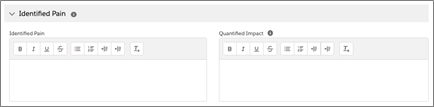
Use this field to capture the Quantified Impact of the customer’s Identified Pain. The Quantified Impact should tangibly describe the size of the pain. How much money, frustration, re-work is it causing? In short, “How big?” is the customer’s true problem?
This field is available as a “Rich Text Field” which allows users to enter and format relevant information.
Champion(s)
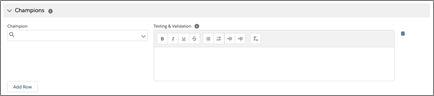
Use this field to identify the individual(s) within your customer’s organization who has power and influence, is actively selling on your behalf and has a personal win tied to your solution.
When selecting your Champion, you will be limited to selecting existing “Contacts” already associated within the Account which this opportunity is associated with. You will have a “Create New Contact” button within this field to use if your Champions’s contact hasn’t been created yet.
Competition
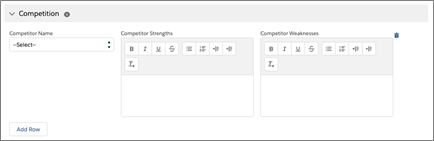
Use this field to capture any identified Competition. This includes any alternatives to purchasing your solution, including “Do Nothing” or “Do It Internally.”
Choose from any of the available options within the drop-down menu. When selecting a Competitor from the drop-down list, their stregnths and weaknessess will auto-populate.
You can modify the “Weaknesses” and “Strengths” on an opportunity-by-opportunity basis to better reflect how the Competitor is positioned for this particular opportunity. Any changes you make will not impact the pre-identified information attached to the Competitor.
If the Competitor you are looking for is NOT included in the drop-down list, select “Other” and enter information related to the new Competitor. When adding an “Other” competitor, be sure to include any Competitive Weaknesses and Competitive Strengths that you’ve identified.
You can select multiple Competitors by clicking “Add Row” and selecting the appropriate Competitor.