Install Opportunity Manager in Salesforce
-
Check your inbox for a welcome email from Force Management. This email will include a link to install the http://Salesforce.com package and your organization-specific license key. Click the link to begin installing.
💡 Note: The application will install into the SFDC environment you are logged into (Production vs. Sandbox). Please be sure to log into the correct environment prior to installation
-
We recommend choosing “Install for All Users” to avoid having to configure additional permissions.
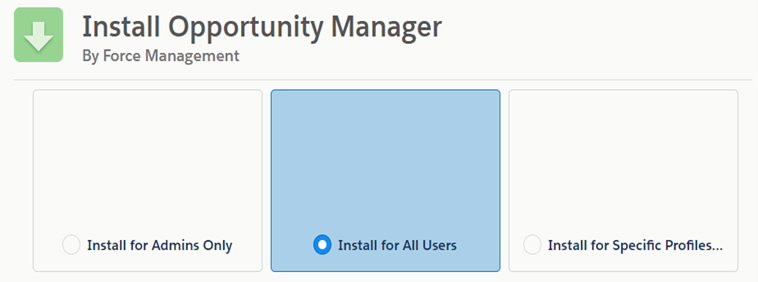
💡Note: If you cannot install for all users, follow the instructions at the bottom of the Manage Access for Salesforce Users page to create the additional permission set
-
Click on “Install” to start the installation. The installation process usually takes 3-5 minutes.
Configure the Opportunity Manager License
-
Once the package is installed, open the FM Opportunity Manager app from the app launcher.
-
Navigate to the Opportunity Manager Configuration tab. By default, this should be the leftmost tab on the navigation bar.
-
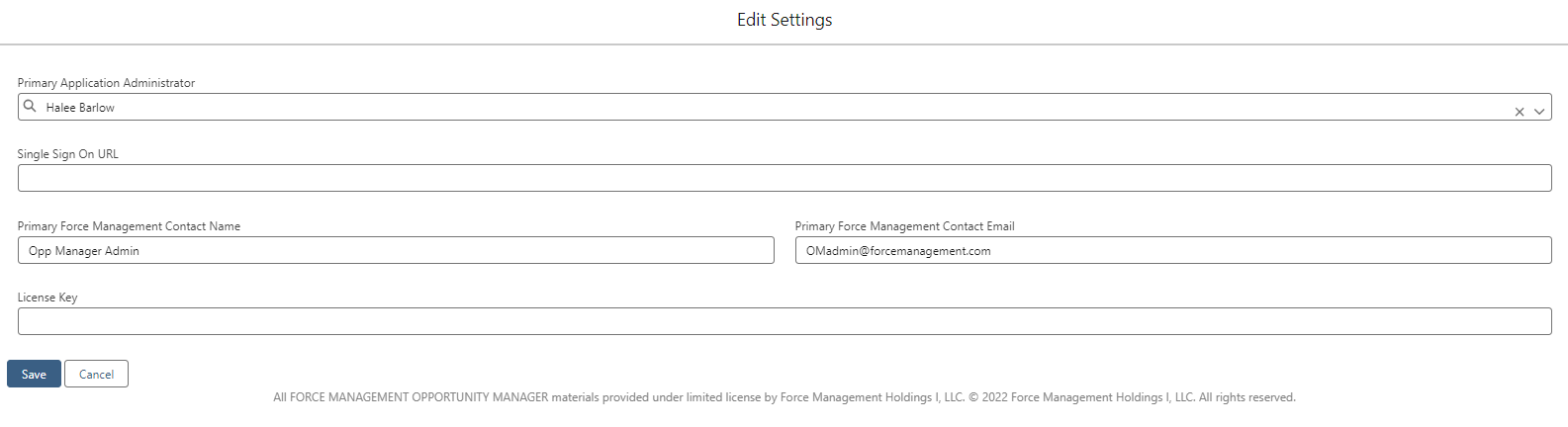
Under the Admin tab, click “Edit”.
-
Enter the following information:
-
Primary Application Administrator: This should be the user in your organization who will be managing the application.
-
Single Sign-On URL: Skip this step for now. *This only applies if your organization utilizes the Command Center’s SSO capability.
-
Primary Force Management Contact Name: Enter “Opp Manager Admin”
-
Primary Force Management Contact Email: “OMAdmin@forcemanagement.com”
-
License Key: Copy and paste the license key provided to you from Force Management in this field.
-
-
Click Save.