
Finding the “Opportunity Manager Dashboard”
-
Click on the Dashboards tab from your SFDC ribbon
-
If you do not have this option, click the little pencil on the right-hand side to add it
-
-
Select “All Dashboards” from the left-hand side menu
-
Search for the dashboard called “Opportunity Manager Dashboard” in the “Search all Dashboards” search box

-
Click on the dashboard named “Opportunity Manager Dashboard” to open it
Steps to remove either the Command of the Message® or MEDDPICC reports from the Dashboard
Required for organizations who’ve purchased only one of the two methodologies
-
Click on the Dashboards tab from your SFDC ribbon
-
If you do not have this option, click the little pencil on the right-hand side to add it
-
-
Select “All Dashboards” from the left-hand side menu
-
Search for the dashboard called “Opportunity Manager Dashboard” in the “Search all Dashboards” search box

-
Click on the dashboard named “Opportunity Manager Dashboard” to open it
-
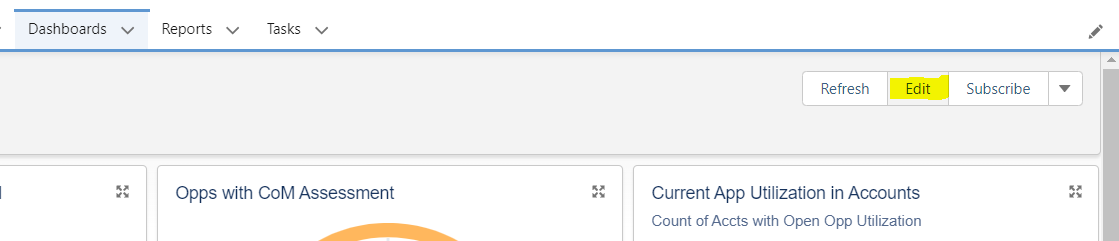
Click “edit” in the right-hand corner of the page
-
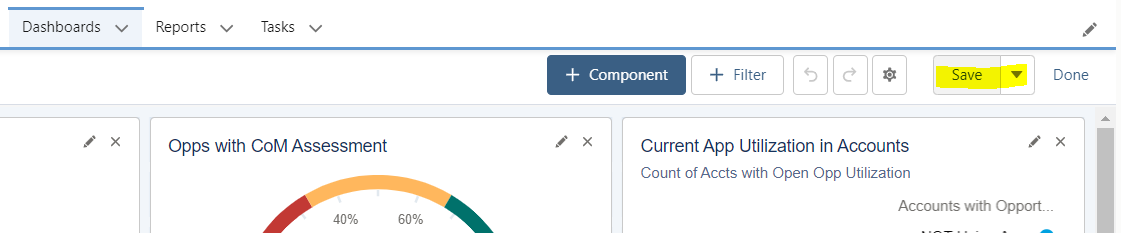
Click the “x” on each report image related to the methodology your organization did not purchase
-
Click “Save” in the top right-hand corner of the page
Steps to set the reports to track only deals over a certain dollar amount
-
Click on the Dashboards tab from your SFDC ribbon
-
If you do not have this option, click the little pencil on the right-hand side to add it
-
-
Select “All Dashboards” from the left-hand side menu
-
Search for the dashboard called “Opportunity Manager Dashboard” in the “Search all Dashboards” search box

-
Click on the dashboard named “Opportunity Manager Dashboard” to open it
-
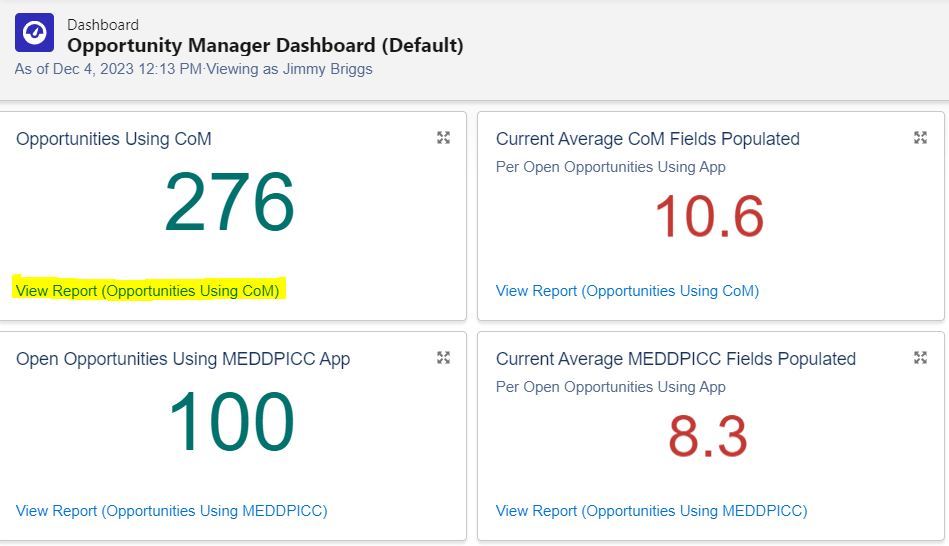
On one of the dashboard components, click the “View Report” link at the bottom of the component to open up the raw report
-
Once the raw data report has opened, click “edit” in the top right-hand corner of the page
-
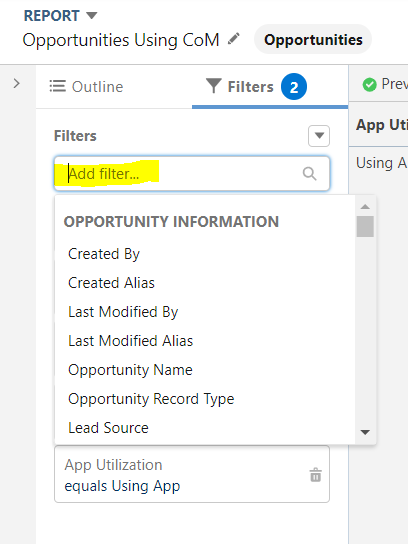
Click “Filters” on the top left-hand corner of the page (next to “Outline”)
-
Click “Add Filter”
-
Search for “Amount”
-
Under “Operator,” select “Greater Than” from the drop-down menu
-
Under “Value,” enter the total dollar amount you’d like the report to contain data for
-
For example, entering $250,000 will force the report to only include data on deals priced over $250,000
-
-
Click “Apply”
-
Click “Save & Run” in the top right-hand corner of the page
-
Repeat these steps for each report within the “Opportunity Manager Dashboard”