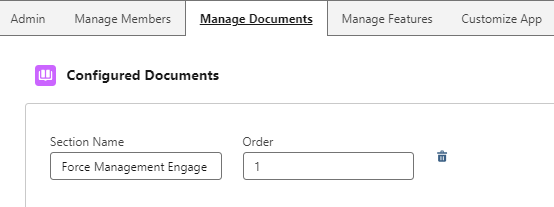
From the App Launcher → FM Opportunity Manager® app → Opportunity Manager Configuration tab → Manage Documents Tab
Manage Documents Tab
The Manage Documents tab enables administrators to set up links to external documents and learning resources for http://Salesforce.com users to access from the Quick Links Lightning Component on the Opportunity object. All users with either a Command of the Message or MEDDPICC license will have visibility to all documents configured.
By default, the Configured Documents section comes with two (2) Sections already identified:
-
Force Management Engagement Documents
-
Ascender® Links
Within each section you can add/modify the following information:
-
Section Name: This is the name (or title) that will be displayed as a section header within the Quick Links component on the Opportunity object.
-
Order: This is the order that which the section will appear within the Quick Links component. (Ascending.)
If you’d like to add additional sections, you can do so by clicking on the “Add Section” button located in the upper right-hand corner of the Manage Documents tab.

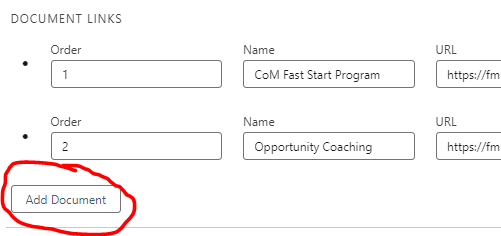
Within each section, you can add/modify the documents or learning content that you’d like to highlight for the users to access. You can add/modify using the following information:
-
Order: This is the order the section will appear within the Quick Links component. (NOTE: The order is ascending.)
-
Name: This is the name of the document/link that will be displayed in the Quick Links component.
-
URL: Please paste the destination URL for the document/course/asset you’d like the user to be able to access. You can include links to your own CMS or LMS as well as links to specific courses and content located on Force Management’s Command Center™.
-
In Command Center™: You will need to check this box if you are linking to a course or asset on the Command Center™. Clicking this box will ensure that the SSO configuration you enabled earlier will be leveraged when making the connection.

To add a new document to a given section, click on the “Add Document” link located in the lower left-hand corner of the section panel.