From the App Launcher → FM Opportunity Manager app → Opportunity Manager Configuration tab → Manage Features
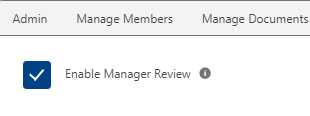
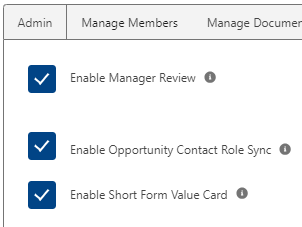
Enable Manager Review
Managers can provide coaching to Reps directly from the Guided Assessment component. They are able to review the Rep's assessment responses and provide written feedback on Strengths, Gaps, and Coaching Recommendations and can assign “Next Steps” with a due date.
This feature can be turned on or off for your organization within the Opportunity Manager Configuration tab. From there, select the “Manage Features” tab. Click “Enable Manager Review” to enable/disable this feature.
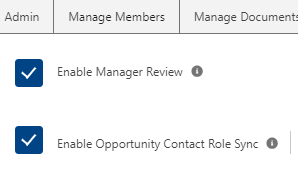
Enable Contact Role Sync
It is possible to sync Economic Buyers and Champions with Opportunity Contact Role records. If a contact is tagged as an Economic Buyer or Champion within their record, they will automatically be added to the Value Card and/or MEDDPICC Qualifier components as such.
This feature can be turned on or off for your organization within the Opportunity Manager Configuration tab. From there, select the “Manage Features” tab. Click “Enable Opportunity Contact Role Sync” to enable/disable this feature.
Number of Assessment Histories
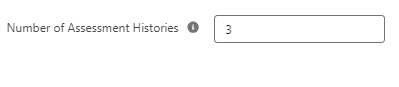
It is possible to adjust the number of previously taken assessments available to review within the Guided Assessment component (max of 3).
To edit the number, navigate to the Opportunity Manager Configuration tab. From there, select the “Manage Features” tab and edit the number in the field as shown in the image to the right.
Enable Short Form Value Card
💡 Command of the Message methodology only
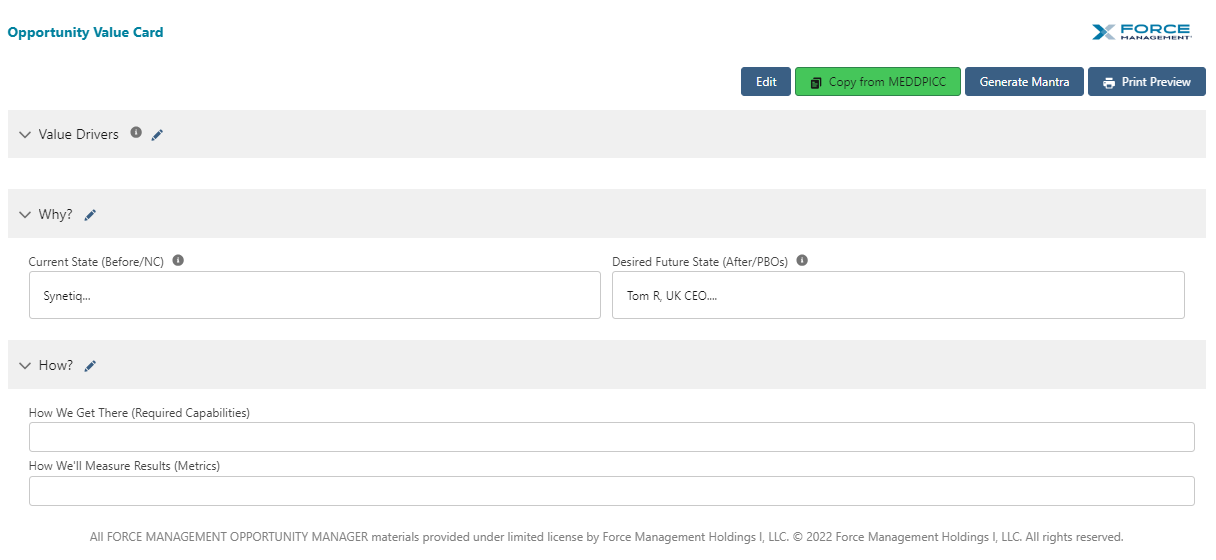
It is possible to simplify the Opportunity Value Card down to a shortened version as shown in the image below:
This feature can be turned on or off for your organization within the Opportunity Manager Configuration tab. From there, select the “Manage Features” tab. Click “Enable Short Form Value Card” to enable/disable this feature.
If Reps had previously entered data into the long-form Value Card, the data within the “Value Drivers,” Before Scenarios,” “After Scenarios,” Required Capabilities,” and “Metrics” will still appear in the short-form Value Card. Data in all other fields will not appear in the short-form Value Card but will not be erased and will reappear if the short-form is disabled. The data can also still be reported on from the long-form while short-form is enabled.
Displayed Account Whitespace Tables
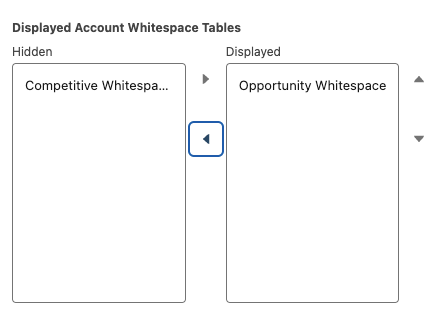
If you want to hide any of the Whitespace tables, this section allows you to toggle to hide either the Opportunity Whitespace table or the Competitive Whitespace table.
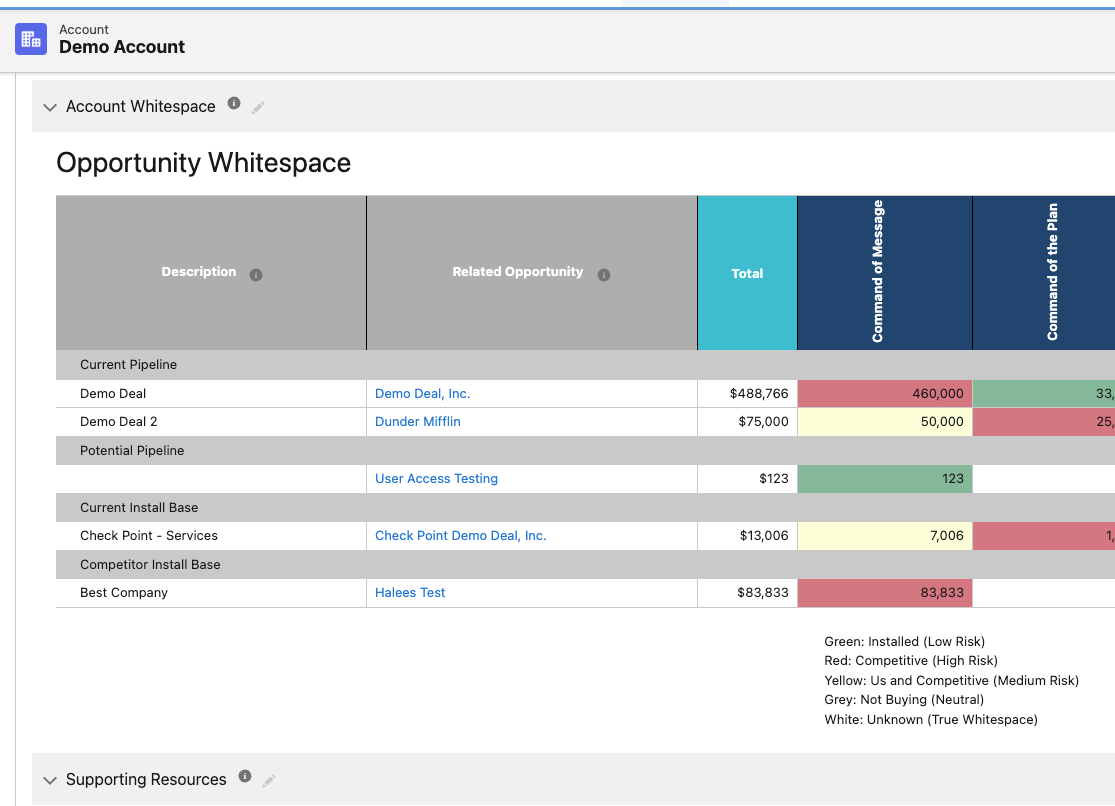
As you can see here, by toggling one or both of the displayed Whitespace tables, you can hide them from the Account Planner component. In the image, the Competitive Whitespace table is selected as ‘Hidden’ and when viewing the image below, you can see that the only viewable table is the Opportunity Whitespace.