
This section will walk you through the initial downloading and setup of Opportunity Manager as well as activating your licenses with the provided license key in the email you received after the implementation call. You will use the same license key for your sandbox/staging environments as well as your production environment.
You will need to have access to install applications into your Salesforce org and have access to the Opportunity Manager Admin Configuration tab by the OM Admin permission set or if you Installed for All Users.
Video Instructions
Text Instructions
Set Up the App
-
Check your inbox for a welcome email from Force Management. This email will include a link to install the http://login.salesforce.com package and your organization-specific license key. Click the link to begin installing.
The application will install into the SFDC environment you are logged into (Production vs. Sandbox). Please be sure to log into the correct environment prior to installation
-
We recommend choosing Install for All Users to avoid having to configure additional permissions. If you choose not to install for ‘All Users,' you will need to configure and assign the ‘Opportunity Manager’ permission set to the users that should have access to Opportunity Manager.
If you Install for All Users, it does not mean that all users will have access to Opportunity Manager, only those who have a license assigned to them. Those who don’t have a license will see the blank space where the component lives on the page layout.
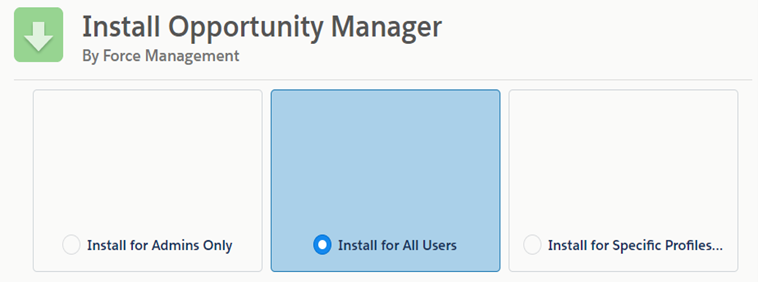
If you cannot install for all users, follow the instructions at the bottom of the Configure User Permissions page to create the additional permission set
-
Click on Install to start the installation. The installation process usually takes 3-5 minutes.
Configure the Opportunity Manager® License
-
Once the package is installed, open the FM Opportunity Manager app from the app launcher.
-
Navigate to the Opportunity Manager Configuration tab. By default, this should be the leftmost tab on the navigation bar.
-
Under the Admin tab, click Edit.
-
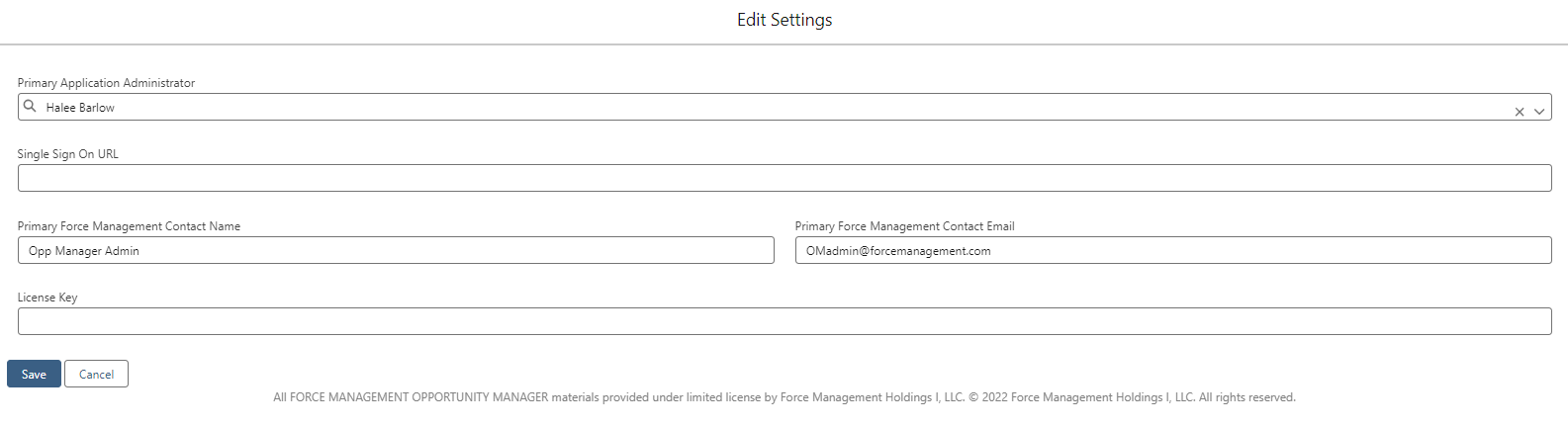
Enter the following information:
-
Primary Application Administrator: This should be the user in your organization who will be managing the application.
-
Single Sign-On URL: Skip this step for now. *This only applies if your organization utilizes the Command Center’s SSO capability.
-
Primary Force Management Contact Name: Enter “Opp Manager Admin”
-
Primary Force Management Contact Email: “OMAdmin@forcemanagement.com”
-
License Key: Copy and paste the license key provided to you from Force Management in this field.
-
-
Click Save.
📋 Related Articles