
You will need to have the ‘Create and customize reports’ permission to be able to complete this section of the installation and set up of Opportunity Manager
Finding the Opportunity Manager® Dashboard
-
Click on the Dashboards tab from your SFDC ribbon
-
If you do not have this option, click the little pencil on the right-hand side to add it
-
-
Select All Dashboards from the left-hand side menu
-
Search for the dashboard called Opportunity Manager Dashboard in the Search all Dashboards search box

-
Click on the dashboard named ‘Opportunity Manager Dashboard’ to open it
Steps to remove either the Command of the Message® or MEDDPICC reports from the Dashboard
Required for organizations who’ve purchased only one of the two methodologies
-
Click on the Dashboards tab from your SFDC ribbon
-
If you do not have this option, click the little pencil on the right-hand side to add it
-
-
Select All Dashboards from the left-hand side menu
-
Search for the dashboard called ‘Opportunity Manager Dashboard’ in the ‘Search all Dashboards' search box

-
Click on the dashboard named ‘Opportunity Manager Dashboard’ to open it
-
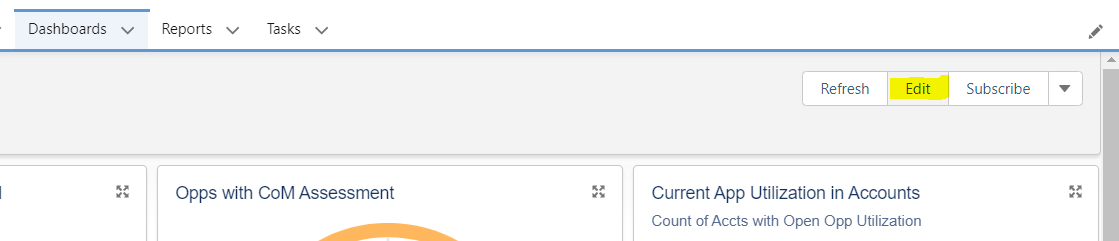
Click Edit in the right-hand corner of the page
-
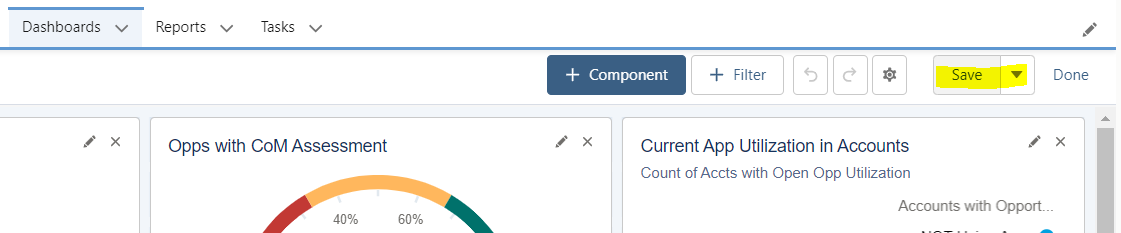
Click the X on each report image related to the methodology your organization did not purchase
-
Click Save in the top right-hand corner of the page
Steps to set the reports to track only deals over a certain dollar amount
-
Click on the Dashboards tab from your SFDC ribbon
-
If you do not have this option, click the little pencil on the right-hand side to add it
-
-
Select All Dashboards from the left-hand side menu
-
Search for the dashboard called Opportunity Manager Dashboard in the Search all Dashboards search box

-
Click on the dashboard named Opportunity Manager Dashboard to open it
-
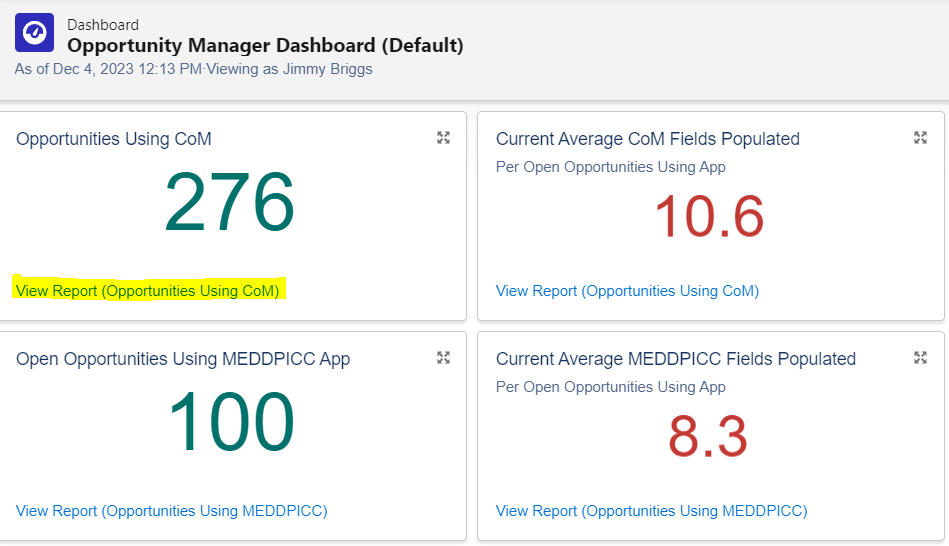
On one of the dashboard components, click the View Report link at the bottom of the component to open up the raw report
-
Once the raw data report has opened, click Edit in the top right-hand corner of the page
-
Click Filters on the top left-hand corner of the page (next to ‘Outline’)
-
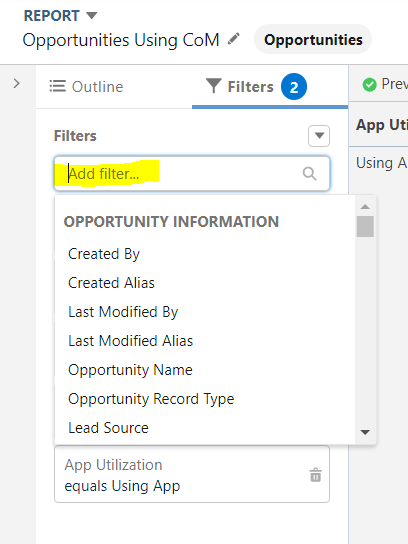
Click Add Filter
-
Search for Amount
-
Under Operator, select Greater Than from the drop-down menu
-
Under Value, enter the total dollar amount you’d like the report to contain data for
-
For example, entering $250,000 will force the report to only include data on deals priced over $250,000
-
-
Click Apply
-
Click Save & Run in the top right-hand corner of the page
-
Repeat these steps for each report within the Opportunity Manager® Dashboard
-